CollaBoard
A little guide to gathering together

Gather with a link,
make something together.

Plan a trip, study together, or host a seminar.
Learn how to open a room and choose the boards for your gathering.

A weekend worth planning.
Our weekend trip ✺

Where should we go this time?

Let’s take a slow walk
by the sea!Alex
How about Gangneung?
Great coffee too ☕Sam
I’ll find a few
places to stay.Jamie
Let’s collect ideas
and vote together.Alex
Example gathering · 3 peopleBrainstorm + Poll

Example board · not live participant data.

Get Started in 3 Steps

🙋 I want to join a room

  1. 1 Open Link

    Click the link from the host or scan the QR code with your mobile camera.

  2. 2 Set Name

    Tap your name at top right to customize your nickname and avatar icon.

  3. 3 Enter Room

    Follow on-screen instructions if password or host approval is required. Done!

🎤 I want to host a room

  1. 1 Create Room

    Set a room title, pick a starting board, and click 'Create Room'.

  2. 2 Invite Team

    Share the 📋 Room Code or show the 📱 QR code at the top of the room.

  3. 3 Lead Activities

    Switch boards anytime and click 📢 Call Team to bring everyone to the same view.

Choose a story for your gathering

Follow the boards in order. The board guides below include real example captures.

01

A weekend trip

Collect ideas → vote → share the schedule

02

A study group

Draw an explanation → share files → take a quiz

03

A seminar

Post a notice → share materials → answer questions

04

A retrospective

Ask a question → collect responses → discuss improvements

Three tools shared across boards

Background

Choose a comfortable background from the board toolbar. Some boards let the host change it for the group.

Maximize workspace

Hide the room header and board tabs. Click the same icon again to restore them.

TV screen

Show content to the audience without editing tools. Choosing a TV area does not require showing every pan or search on your own screen.
All 8 Purpose-Built Boards

TRY THIS TOGETHER

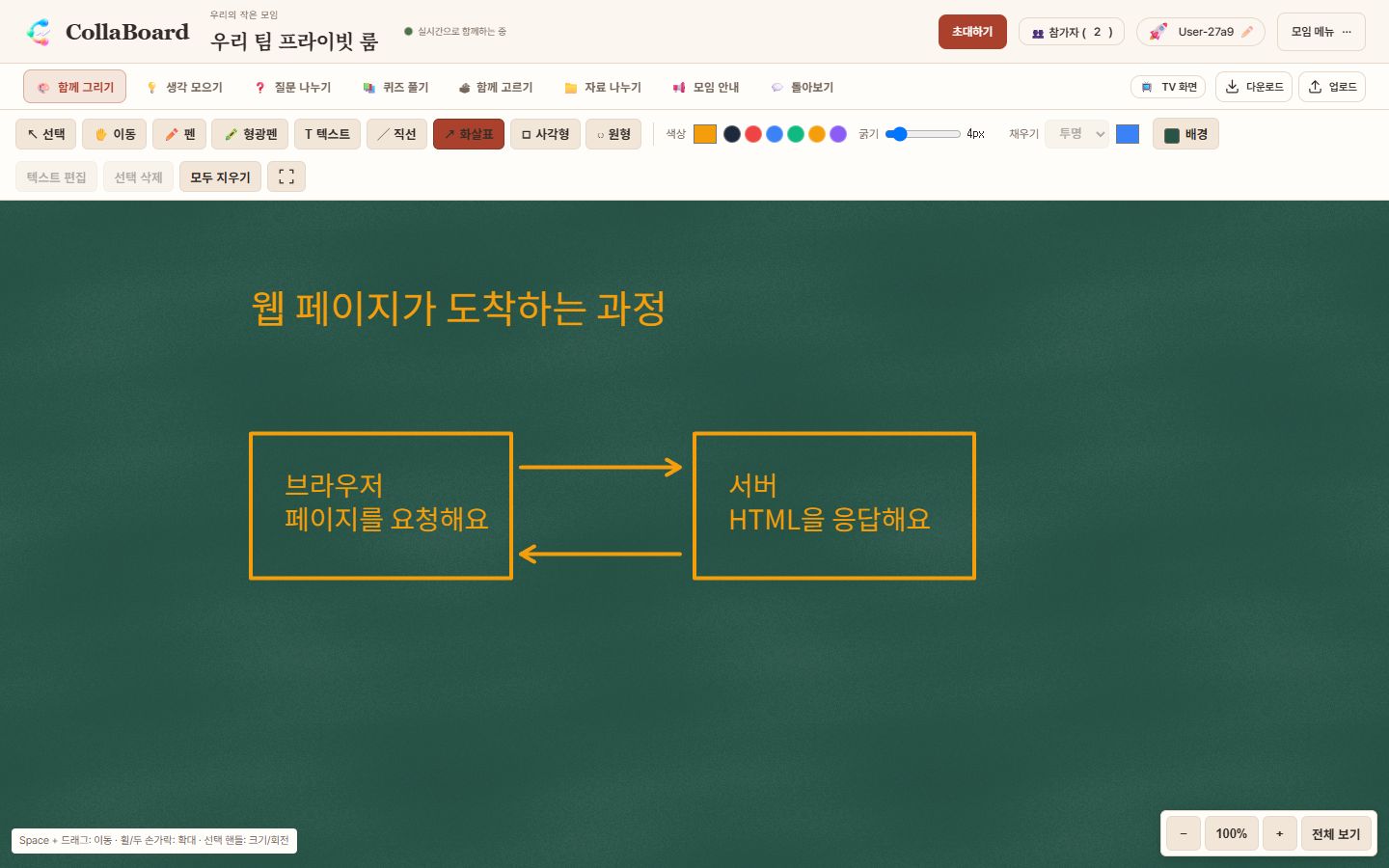
Explain requests and responses in a study group

  1. Use text, rectangles and arrows to explain the browser and server.
  2. Participants follow the explanation and add their own drawings.
  3. Turn on TV and choose the audience area. Maximize the workspace when drawing.
Explain requests and responses in a study group
Explain requests and responses in a study group · Korean interface · Open image to enlarge

Actual board captures with fictional example data.

🎨 Whiteboard Collaborative Realtime Canvas

Best forWhen sketching diagrams, wireframes, or ideas together

  1. Choose and confirm a solid color, chalkboard, paper, graph paper, or dot grid. Draw with pen, shapes, arrows, or text; shapes can have colored fills
  2. Use the hand tool or Space+drag to pan; wheel or pinch to zoom
  3. Select objects to move or delete; drag handles to resize or rotate. Double-click text to edit

💡 Choose from four Korean web fonts in the text dialog. Fonts load before text and PNG export. See Usage Terms in Help for copyright and licenses.
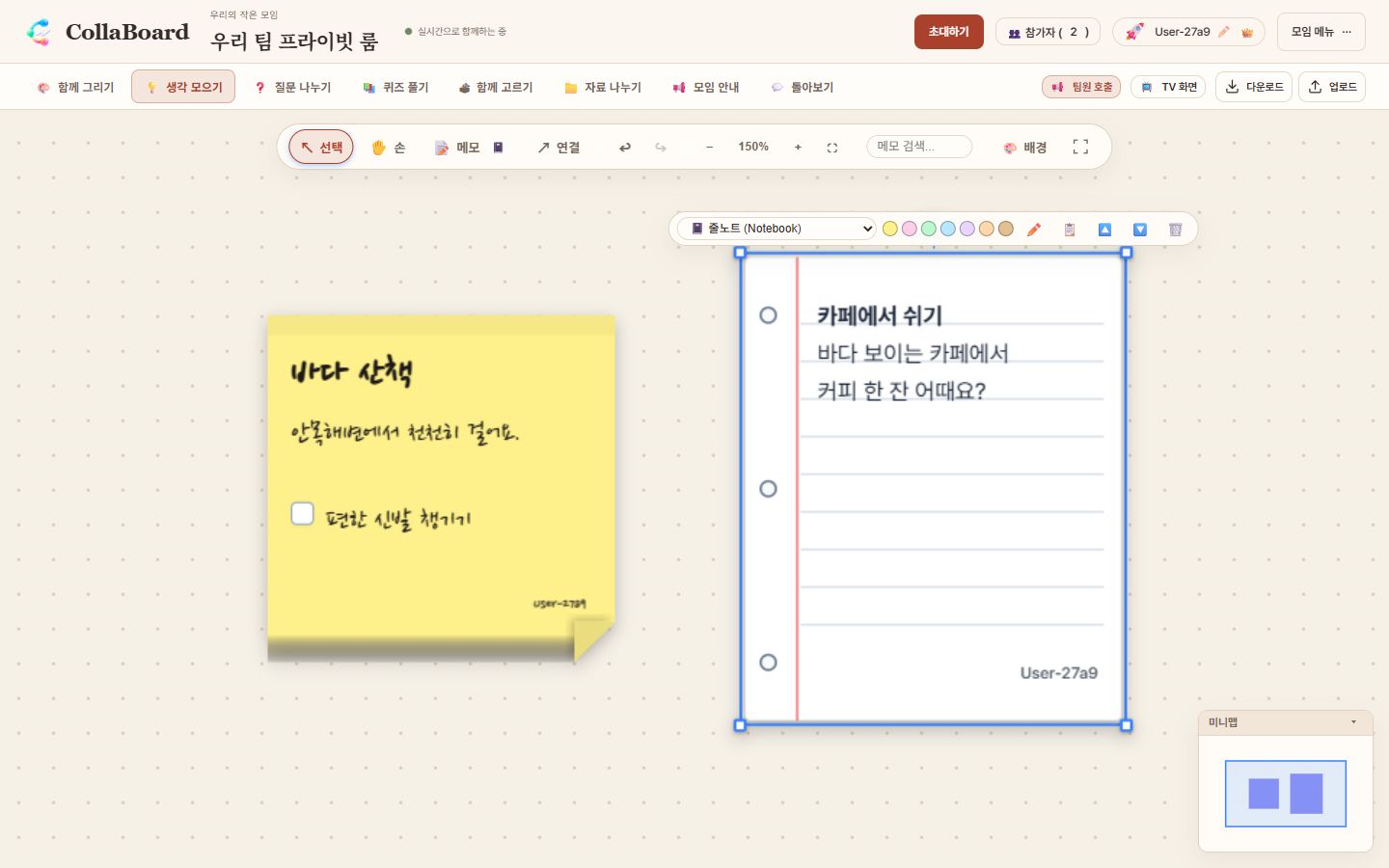
TRY THIS TOGETHER

Collect ideas for a weekend trip

  1. Choose Memo and click an empty area to add an activity idea.
  2. Click Memo again to choose the next style. Change an existing memo with its floating toolbar.
  3. Arrange and connect ideas, then use Poll to choose an activity.
Collect ideas for a weekend trip
Collect ideas for a weekend trip · Korean interface · Open image to enlarge

Actual board captures with fictional example data.

💡 Brainstorm Infinite Canvas & 21 SVG Memo Styles

Best forWhen placing physical-like memos (Sticky, Kraft, Glass, Tape, Pin) on an infinite board and connecting them
  1. Pan freely (Space+Drag) and zoom in/out with the mouse wheel or pinch
  2. Choose from 21 unique physical SVG memo styles and click to place
  3. Double-click to edit text, and draw connecting arrows between memos in real time
TRY THIS TOGETHER

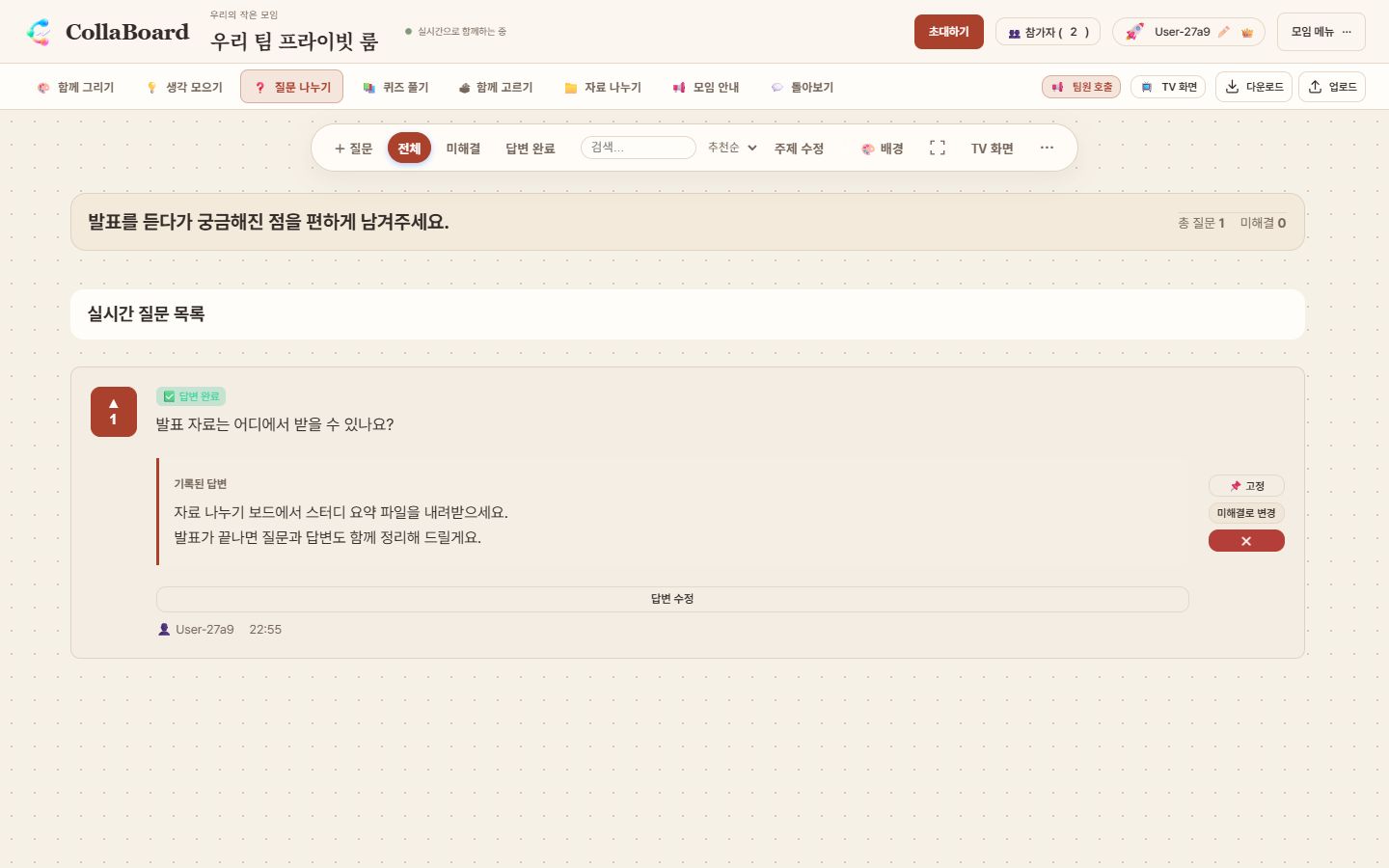
Collect questions and answers during a seminar

  1. Participants post a question and upvote questions they care about.
  2. The facilitator opens Reply and saves an answer.
  3. The answer appears below the question. Share a list or a focused question on TV.
Collect questions and answers during a seminar
Collect questions and answers during a seminar · Korean interface · Open image to enlarge

Actual board captures with fictional example data.

❓ Q&A Collect Questions, Rank by Upvotes

Best forWhen taking audience questions during lectures, webinars, or town halls
  1. Post questions anytime (anonymous posting supported)
  2. Questions with the most 👍 upvotes float to the top
  3. Host marks answered questions as 'Done'
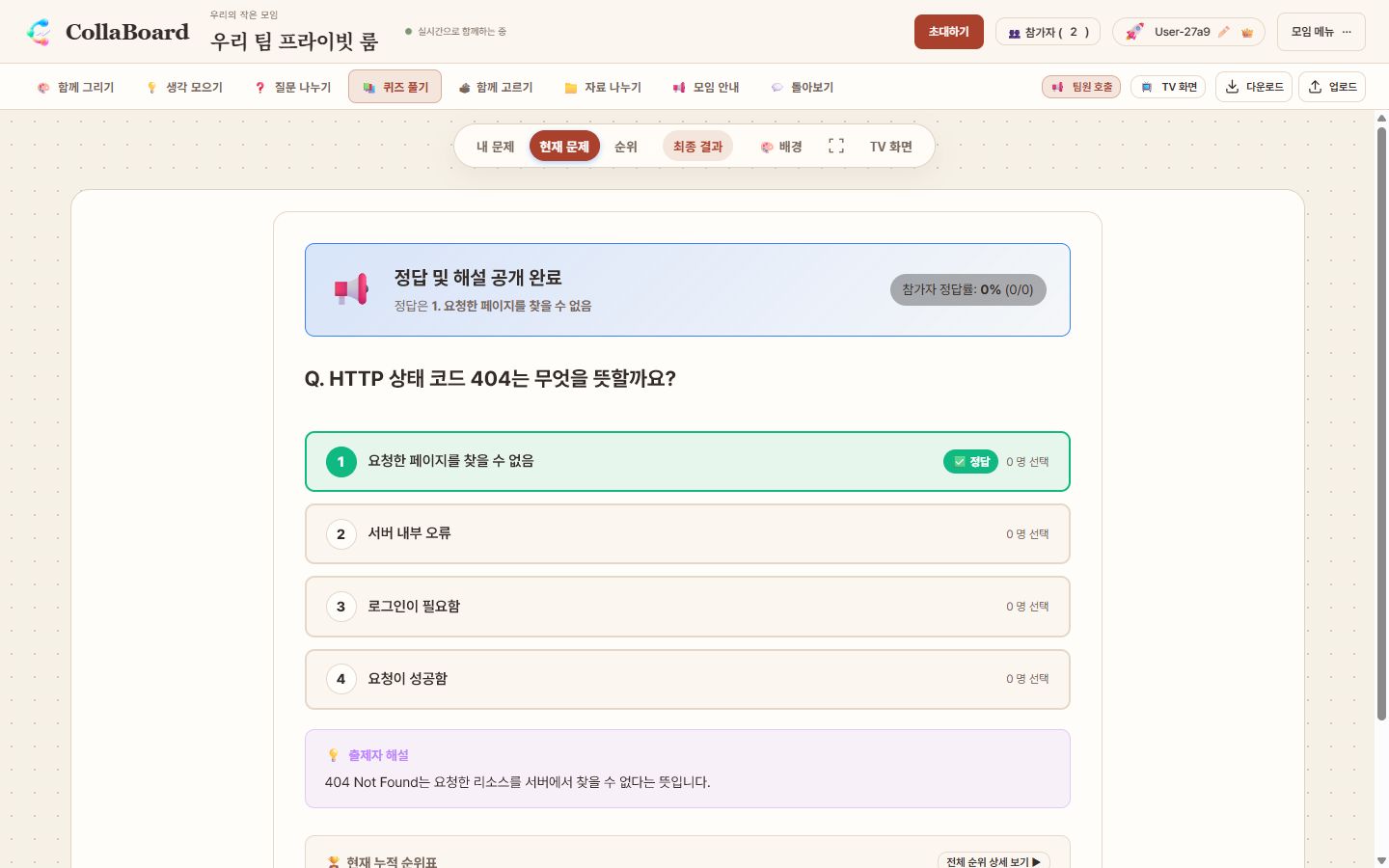
TRY THIS TOGETHER

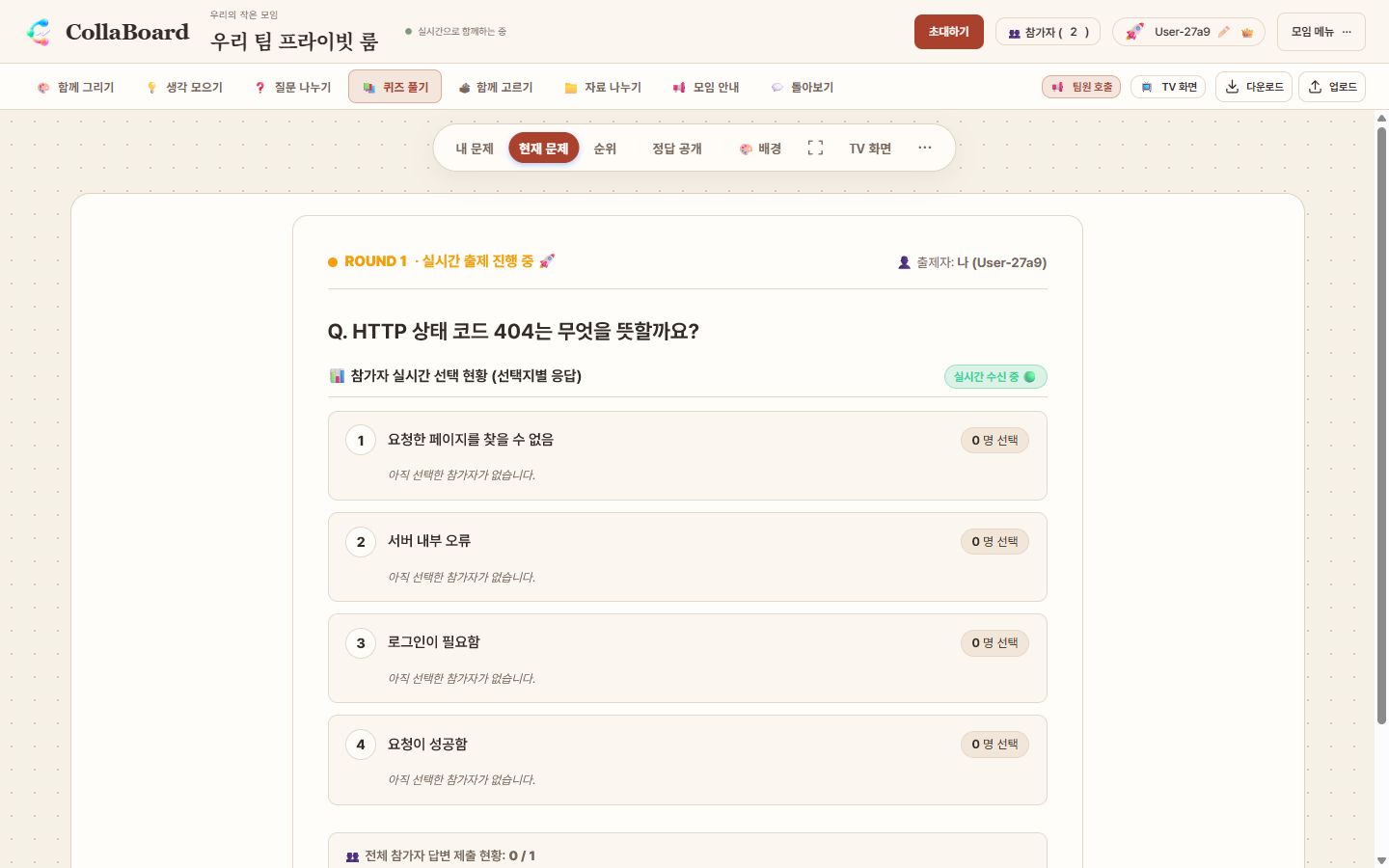
Review what you learned with a quiz

  1. Prepare a four-choice HTTP 404 question with an answer and explanation in your private library.
  2. The host publishes the question and participants answer on their devices.
  3. Reveal the answer and review the explanation together. TV changes with the quiz phase.
1. Publish a question and collect answers
1. Publish a question and collect answers · Korean interface · Open image to enlarge
2. Reveal the correct answer and explanation
2. Reveal the correct answer and explanation · Korean interface · Open image to enlarge

Actual board captures with fictional example data.

📚 Quiz Crowdsourced Team Quiz & Study Game

Best forWhen reviewing study material or hosting team-building games
  1. Create questions from individual devices
  2. Everyone answers the collected questions together
  3. Check rankings on the real-time leaderboard
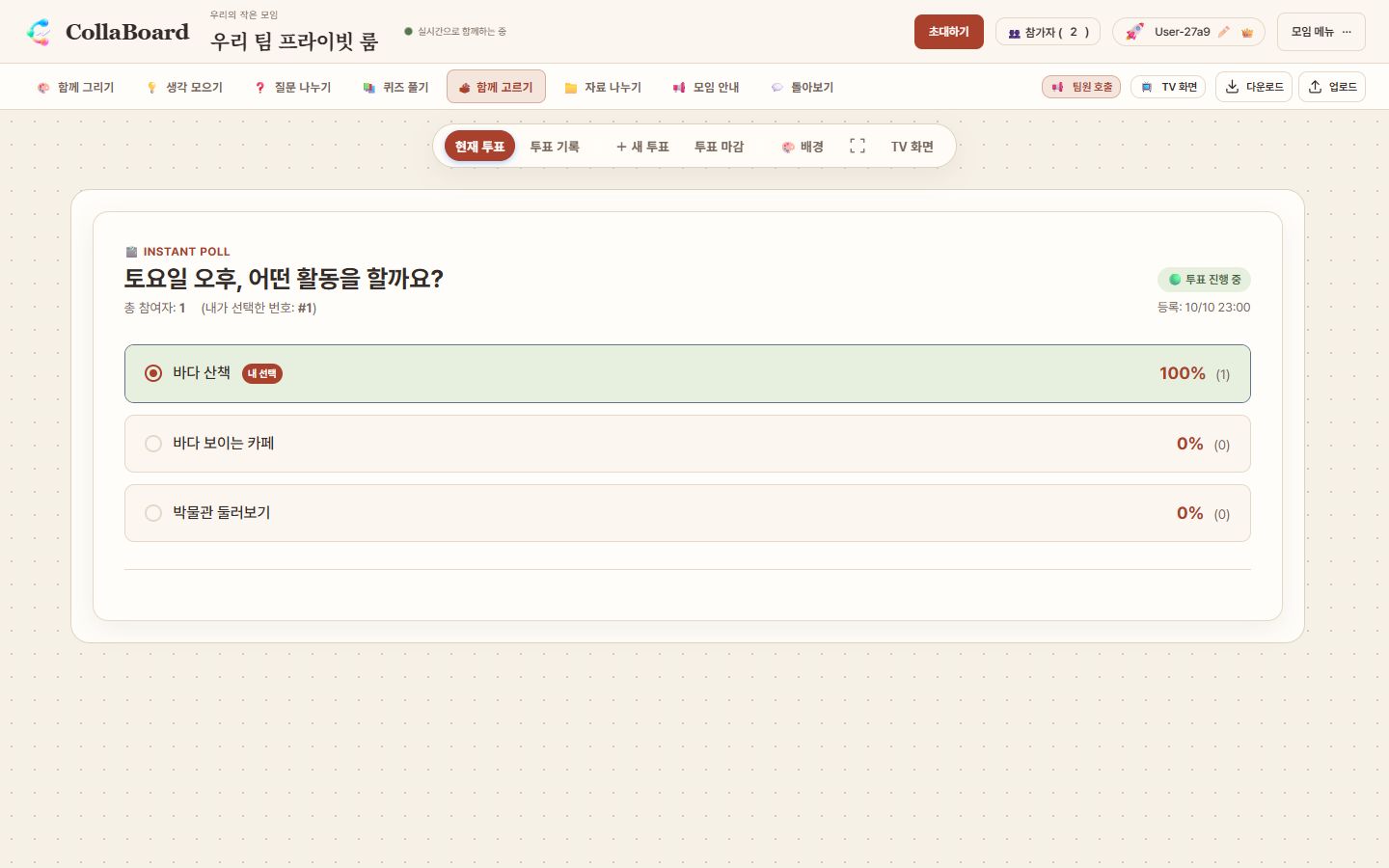
TRY THIS TOGETHER

Choose an afternoon activity together

  1. Create a poll with a beach walk, a café and a museum.
  2. Participants choose an activity and see the votes.
  3. Close voting and share the result on TV. Post the plan in Notice.
Choose an afternoon activity together
Choose an afternoon activity together · Korean interface · Open image to enlarge

Actual board captures with fictional example data.

🗳 Poll Instant 10-Second Live Poll

Best forWhen making fast team decisions from lunch menus to sprint priorities
  1. Set up question and multiple choices
  2. Cast vote with a single tap
  3. Results tally in real time with animated bar charts
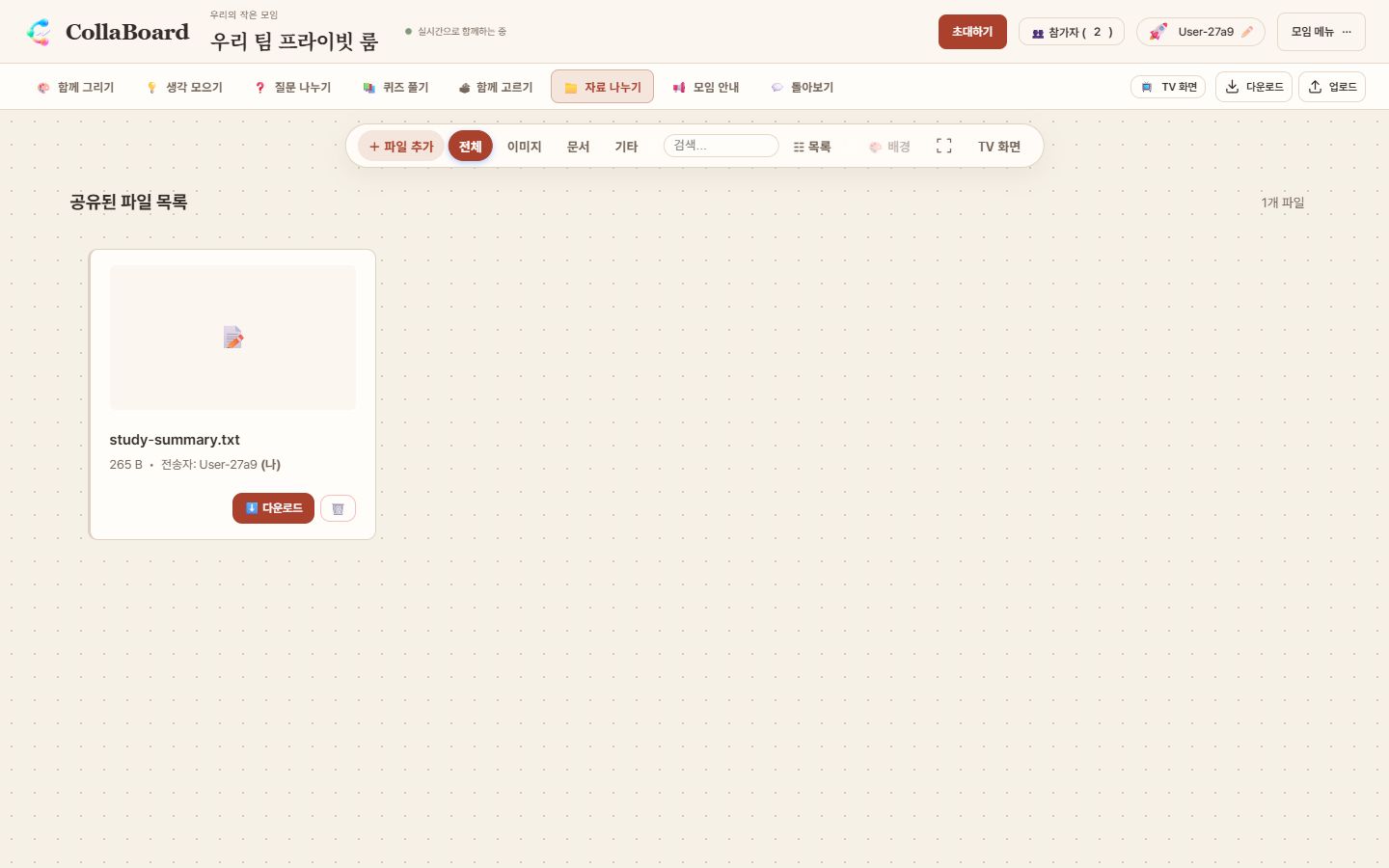
TRY THIS TOGETHER

Share the study summary

  1. Choose Add file and select the study summary.
  2. Keep the sender connected while the file transfers to other participants.
  3. Participants download it to their own devices before leaving.
Share the study summary
Share the study summary · Korean interface · Open image to enlarge

Actual board captures with fictional example data.

📁 File Share Direct P2P File Transfer Without Cloud Storage

Best forWhen sending meeting decks, PDFs, or photos directly to room members

  1. Select files to send
  2. Transfers directly to room members' devices
  3. Tap received files to download and save

💡 Files travel directly from sender's device. Sender must stay in the room during transfer.
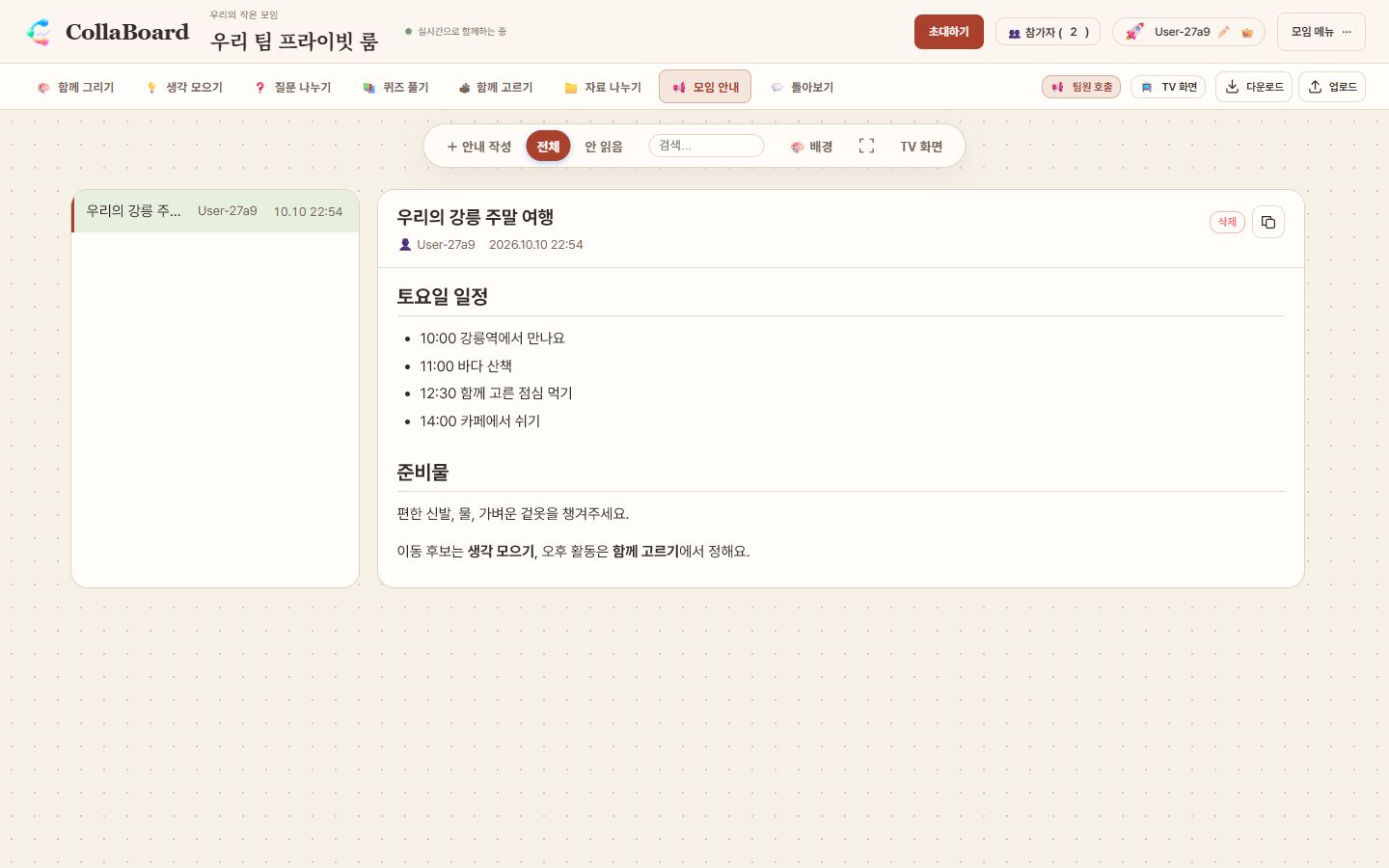
TRY THIS TOGETHER

Share the trip schedule and packing list

  1. Write a title, schedule and packing list using Markdown headings and lists.
  2. Post the notice and select it to display its contents.
  3. Participants read the plan; the facilitator can show it on TV.
Share the trip schedule and packing list
Share the trip schedule and packing list · Korean interface · Open image to enlarge

Actual board captures with fictional example data.

📢 Notice Markdown Announcements for Everyone

Best forWhen posting schedules, reminders, and shared links in one central place
  1. Write title and content with live Markdown preview
  2. Post to deliver instantly to all room participants
  3. Select from list to read or copy with one tap
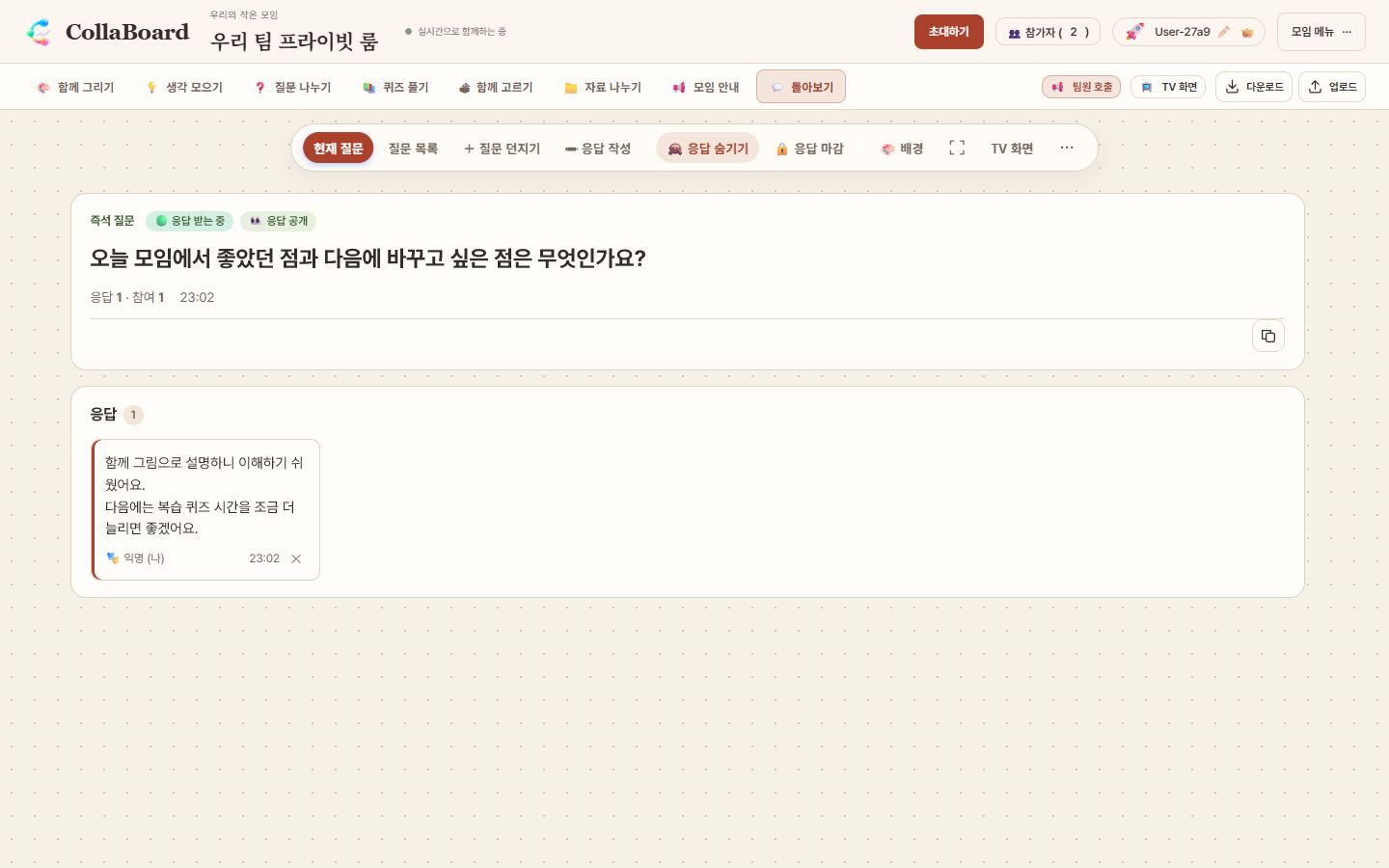
TRY THIS TOGETHER

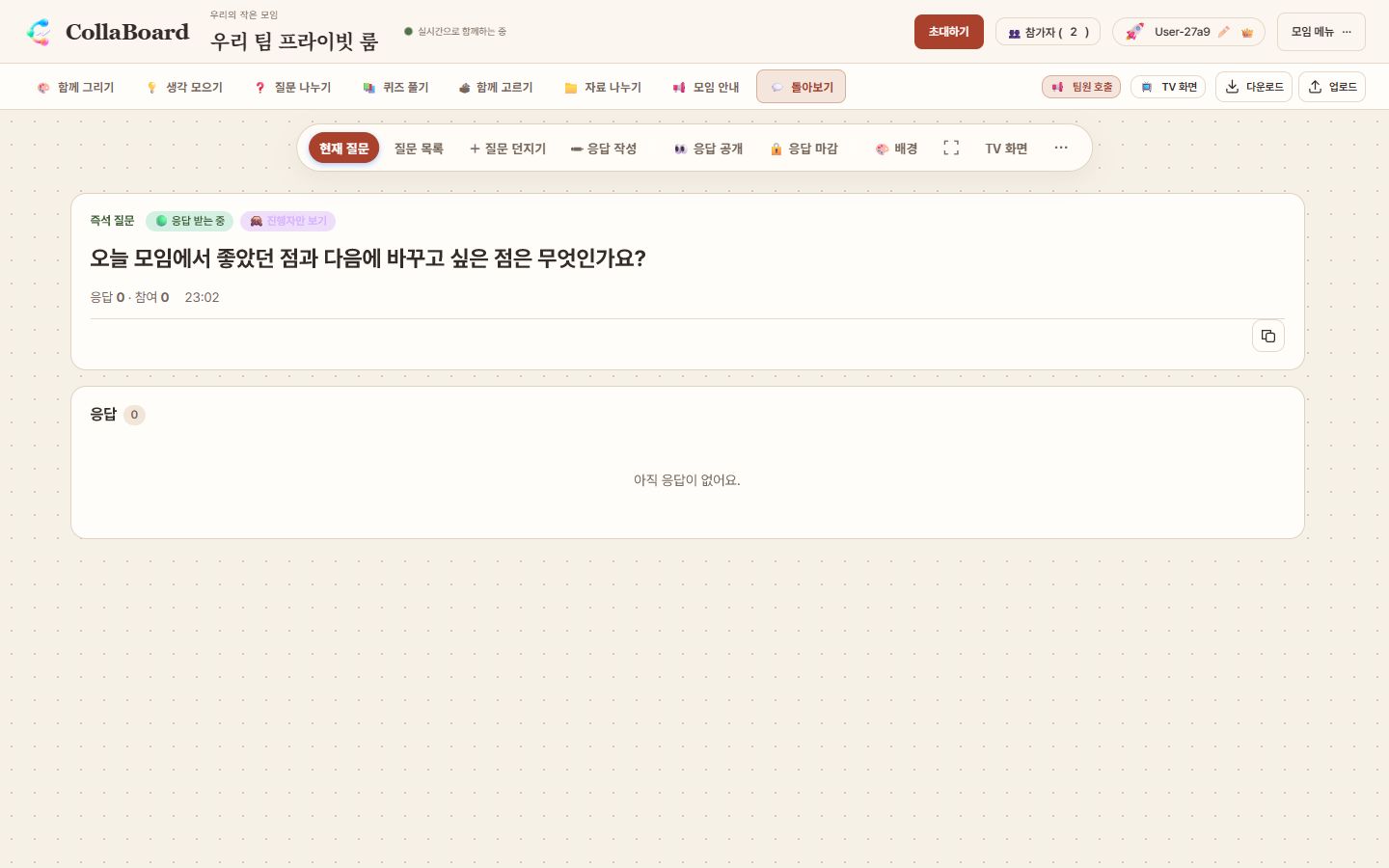
Reflect on the gathering and plan what comes next

  1. The host asks what went well and what to change next time.
  2. Participants submit responses, optionally anonymously. Others cannot see them before reveal.
  3. Reveal the responses and discuss them together on TV.
1. Collect responses before revealing them
1. Collect responses before revealing them · Korean interface · Open image to enlarge
2. Reveal responses and discuss them together
2. Reveal responses and discuss them together · Korean interface · Open image to enlarge

Actual board captures with fictional example data.

💬 Feedback Facilitator-Guided Workshop Prompts

Best forWhen guiding workshops or training sessions with step-by-step reflection

  1. Host prepares prompt list (workshop templates provided)
  2. Host opens questions one by one for participants to answer
  3. Host reveals responses and switches to Presentation Mode on projector

Host Privileges & Controls 👑

Admission Approval

When enabled, newcomers wait for approval. Match the 4-digit code shown on both screens.

Room Password

Set a password when creating the room so only authorized team members can enter.

Call Team

Instantly bring all participants to the board you are currently viewing.

Host Delegation & Kick

Transfer host privileges or remove unwanted participants from the participants list.

TV Screen

Share board content without editing tools. Whiteboard and Brainstorm use a chosen audience area; other boards use dedicated views. Click TV again to turn it off.

Frequently Asked Questions

Is sign-up or registration required?

No. You only need a nickname to create or join a room immediately.

Is my data stored on the server?

No. The server only acts as a signaling broker to connect peers. Your drawings, ideas, and files travel directly between participant devices via end-to-end encryption.

Can latecomers see previous discussions and drawings?

Yes. Most boards automatically sync current history from existing participants upon entry.

What happens if the host refreshes or leaves?

Host privileges automatically transfer to the next earliest participant. Note that unrevealed responses in Feedback board reside only in host memory and may be lost if not yet published.

Does it work on mobile phones?

Yes. Scan the QR code with your smartphone camera to participate instantly. We recommend using desktop PC for Presentation Mode.

What does 'Not connected' mean?

Direct peer connection might be blocked by restrictive corporate or campus firewalls. Tapping the indicator reveals troubleshooting tips; switching to another network like mobile hotspot usually resolves it.

How long are rooms retained on the server?

Rooms with no active participants for 24 hours are permanently wiped from server (Durable Object) storage. Empty rooms become eligible for reuse by other users after 10 minutes.

Is TURN relay safe when direct P2P is blocked?

Yes. When direct peer connection is blocked by strict firewalls, traffic relays securely through Cloudflare TURN servers. Data remains fully encrypted end-to-end via DTLS/SRTP, so TURN servers cannot inspect or record payloads.

Can I open the same room in multiple tabs?

Within the same browser, each room can only be active in one tab. Opening a new tab automatically relinquishes the previous tab's connection.

Create Room Now →